
Anúncios
How to Activate Siri on Your iPhone
Start Using Siri
Apple’s Siri has revolutionized the way we interact with our smartphones, making everyday tasks easier through simple voice commands. Whether you’re driving, cooking, or simply want to keep your hands free, activating Siri on your iPhone opens up a world of convenience that can genuinely transform your mobile experience. 📱
Understanding how to properly activate and configure Siri is the first step toward maximizing your iPhone’s potential. This comprehensive guide will walk you through every method available, from the classic “Hey Siri” command to physical button combinations, ensuring you can access Apple’s intelligent assistant whenever you need it.
Anúncios
Understanding Siri and Its Capabilities ✨
Before diving into activation methods, it’s important to understand what Siri actually is and what it can do for you. Siri is Apple’s built-in virtual assistant that uses voice recognition and natural language processing to respond to your questions, execute commands, and help manage your daily activities.
From setting reminders and sending text messages to controlling smart home devices and providing weather updates, Siri handles countless tasks through simple voice interactions. The assistant learns from your usage patterns over time, becoming more personalized and efficient at predicting your needs.
Anúncios
Siri works across the Apple ecosystem, meaning you can use it on your iPhone, iPad, Apple Watch, Mac, HomePod, and even AirPods. This seamless integration makes it an incredibly powerful tool for anyone invested in Apple’s technology landscape.
Requirements for Activating Siri 📋
Before you can activate Siri, there are a few prerequisites you need to ensure are in place. First and foremost, your iPhone must be running iOS 8 or later, though newer versions offer significantly enhanced functionality and better voice recognition accuracy.
You’ll also need an active internet connection for most Siri features, as the assistant processes many requests through Apple’s servers. Some basic commands work offline, but the full range of capabilities requires either Wi-Fi or cellular data connectivity.
Additionally, Siri supports multiple languages and dialects, so you’ll want to configure the language settings according to your preference. The assistant’s accuracy improves dramatically when using your native language or the language you’re most comfortable speaking.
Enabling Siri in iPhone Settings ⚙️
The first step in your Siri journey is enabling the feature through your iPhone’s settings. This process is straightforward but essential, as Siri isn’t always activated by default on every device or after certain software updates.
To enable Siri, open the Settings app on your iPhone and scroll down until you find “Siri & Search.” Tap on this option to access all Siri-related configurations. Here you’ll see several toggle switches that control different aspects of how Siri functions on your device.
The main toggles you’ll encounter include:
- Listen for “Hey Siri” – Enables voice activation without touching your phone
- Press Side Button for Siri – Allows Siri activation via the physical button (or Home button on older models)
- Allow Siri When Locked – Determines whether Siri can be accessed from the lock screen
Turn on the toggles according to your preferences. Most users enable all three options for maximum convenience, though you may have security or privacy reasons to limit certain activation methods.
Configuring Voice Recognition Settings
Once you’ve enabled the basic Siri functions, you’ll want to set up voice recognition so your iPhone can accurately identify when you’re speaking to it. When you first enable “Hey Siri,” your iPhone will guide you through a brief setup process.
During this setup, you’ll be asked to say several phrases out loud, such as “Hey Siri,” “Hey Siri, send a message,” and “Hey Siri, what’s the weather like today?” This training process helps Siri learn the unique characteristics of your voice, improving accuracy and reducing false activations.
The voice recognition training typically takes less than two minutes and significantly enhances your experience with the assistant. It’s worth completing this process in a quiet environment where Siri can clearly hear your voice without background interference.
Activation Method 1: Using “Hey Siri” 🗣️
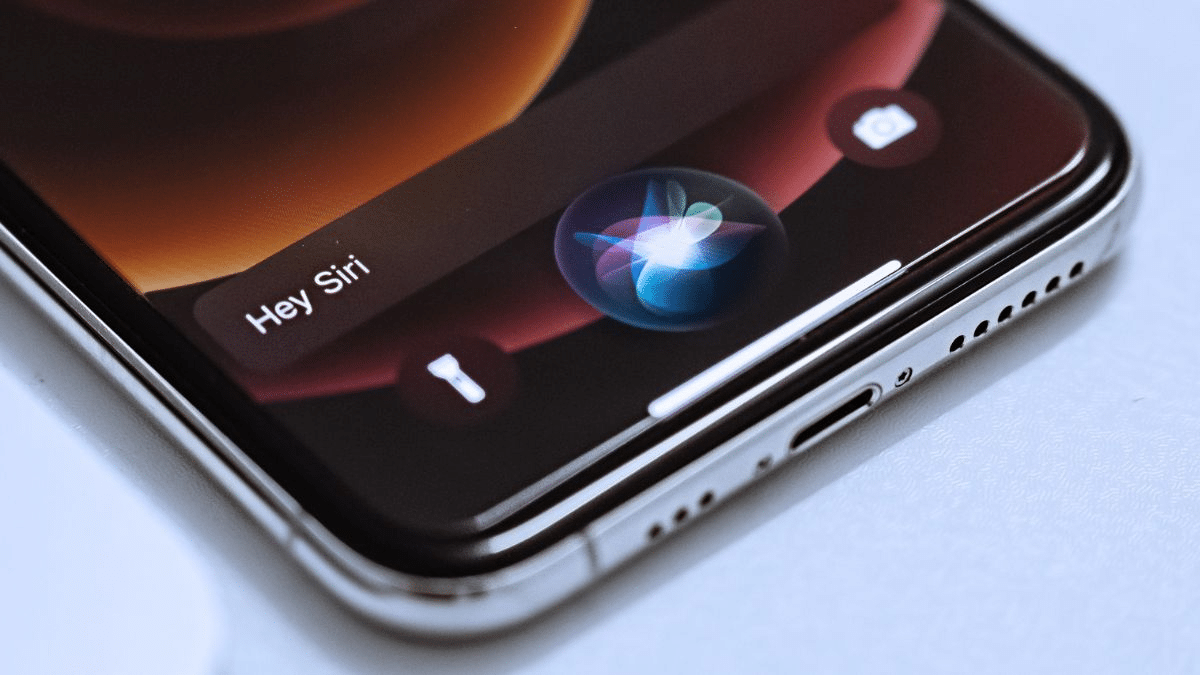
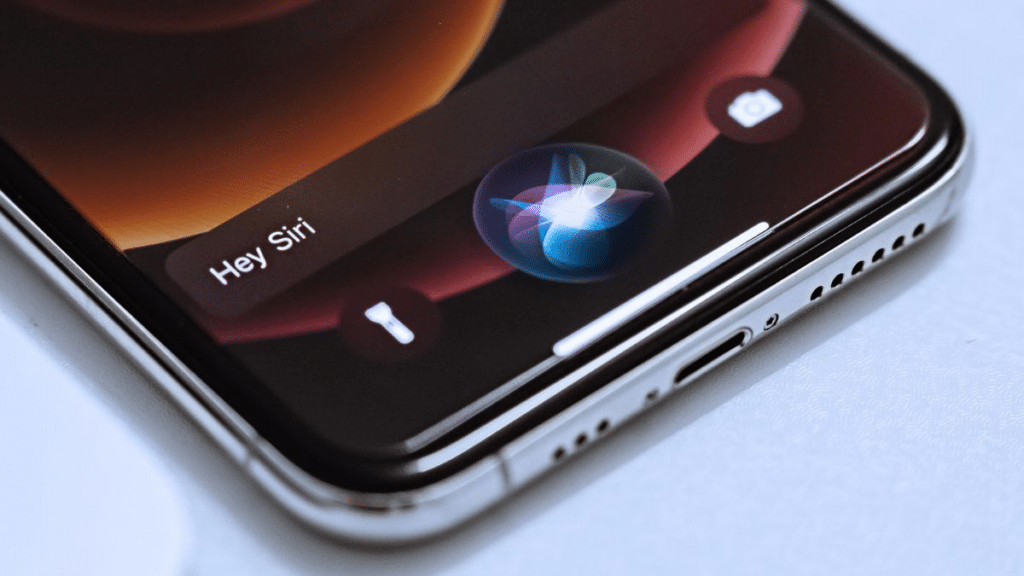
The most convenient way to activate Siri is through voice activation using the “Hey Siri” wake phrase. This hands-free method allows you to summon the assistant from across the room or while your hands are occupied with other tasks.
To use this method, simply say “Hey Siri” in a clear voice, followed immediately by your command or question. For example, “Hey Siri, what time is it?” or “Hey Siri, call Mom.” You don’t need to pause between the wake phrase and your request – Siri is designed to process both parts as a single command.
This feature works even when your iPhone is face-down on a table or across the room, as long as it’s connected to power or you have a newer iPhone model (iPhone 6s and later) that supports always-on “Hey Siri” functionality without being plugged in.
Troubleshooting “Hey Siri” Issues
If “Hey Siri” isn’t responding, there are several potential solutions. First, ensure the feature is enabled in Settings > Siri & Search. Check that your iPhone’s microphone isn’t blocked or covered, and remove any thick cases that might muffle sound.
You can also try retraining Siri by toggling off “Listen for Hey Siri,” waiting a few seconds, then turning it back on and going through the voice training process again. This often resolves recognition issues, especially if you’ve been in different acoustic environments or your voice has changed due to illness.
Activation Method 2: Using the Side or Home Button 🔘
For situations where voice activation isn’t practical – such as in quiet public spaces or when you want to be discreet – you can activate Siri using your iPhone’s physical buttons. The exact button depends on your iPhone model.
On iPhone X and later models (without a Home button), press and hold the Side button (the power button on the right side of the device) until the Siri interface appears. You’ll feel a haptic vibration and see the familiar Siri waveform at the bottom of your screen.
On iPhone 8 and earlier models (with a Home button), press and hold the Home button instead. The same Siri interface will appear, ready to receive your command. On iPhone SE (2nd and 3rd generation), even though the design resembles older models, you’ll use the Side button like newer iPhones.
Using Type to Siri Feature
If you’re in an environment where speaking isn’t appropriate but you still want to use Siri, Apple offers a “Type to Siri” feature. This allows you to interact with the assistant through text input rather than voice commands.
To enable Type to Siri, go to Settings > Accessibility > Siri, then toggle on “Type to Siri.” Once enabled, when you activate Siri through the button method, a keyboard will appear instead of the listening interface, allowing you to type your requests silently.
Activation Method 3: Using AirPods or Headphones 🎧
When you’re wearing AirPods or compatible Bluetooth headphones, you have additional methods for activating Siri that are specifically designed for hands-free convenience while on the go.
With AirPods (2nd generation or later) and AirPods Pro, you can simply say “Hey Siri” without touching your iPhone or the earbuds themselves. This works identically to using “Hey Siri” on your iPhone directly.
Alternatively, you can double-tap on AirPods (1st or 2nd generation) or press and hold the force sensor on AirPods Pro to activate Siri. With wired Apple EarPods or compatible headphones, press and hold the center button on the remote control.
Customizing Siri Settings for Optimal Performance 🎯
Beyond basic activation, there are numerous settings you can adjust to make Siri work exactly the way you want. These customizations can significantly improve your experience and make the assistant more useful for your specific needs.
In Settings > Siri & Search, you’ll find options to change Siri’s voice, including gender, accent, and speaking rate. Apple offers multiple voice options for most languages, allowing you to choose the one that sounds most natural to you.
You can also customize which apps have access to Siri suggestions and shortcuts. Scroll down in the Siri & Search settings to see a list of all your apps, and toggle whether you want Siri to learn from each app and suggest actions based on your usage patterns.
Setting Up Siri Shortcuts
Siri Shortcuts represent one of the most powerful features for advanced users. These allow you to create custom voice commands that trigger complex sequences of actions across multiple apps with a single phrase.
To create shortcuts, download the Shortcuts app from the App Store if it’s not already on your device. Within this app, you can either choose from pre-made shortcuts or create your own workflows that combine multiple steps into a single voice command.
For example, you could create a “Good Morning” shortcut that reads your calendar, provides weather information, starts your coffee maker (if you have a compatible smart device), and plays your favorite news podcast – all triggered by saying “Hey Siri, good morning.”
Privacy and Security Considerations 🔒
While Siri offers tremendous convenience, it’s important to understand the privacy and security implications of having an always-listening assistant on your device. Apple has implemented several features to protect your privacy while using Siri.
First, you should know that Siri requests are associated with a random identifier, not your Apple ID, and Apple states that it doesn’t sell your information to advertisers or other organizations. Audio recordings are encrypted and sent to Apple’s servers for processing, but you can opt out of having these recordings stored.
To enhance security, consider disabling “Allow Siri When Locked” in your settings. While this reduces convenience, it prevents anyone from accessing certain information or executing commands through Siri without first unlocking your iPhone with Face ID, Touch ID, or your passcode.
Managing Siri History and Data
You have control over the data Siri collects about you. In Settings > Siri & Search, scroll down and tap “Siri & Dictation History” to view options for deleting your Siri interaction history. This removes the data Apple has stored about your previous requests.
Additionally, you can turn off “Improve Siri & Dictation” if you don’t want Apple to store audio recordings of your interactions for quality improvement purposes. This setting provides a balance between privacy and contributing to better voice recognition technology.
Common Siri Commands to Get You Started 💬
Now that Siri is activated and configured on your device, you’re probably wondering what you can actually do with it. Here are some of the most useful commands to help you get started and discover the assistant’s capabilities.
Communication commands:
- “Send a message to [contact name] saying [your message]”
- “Call [contact name]”
- “FaceTime [contact name]”
- “Read my latest messages”
- “Reply that I’ll be there in 10 minutes”
Productivity commands:
- “Set an alarm for 7 AM”
- “Remind me to call the dentist tomorrow at 2 PM”
- “Create a note called grocery list”
- “What’s on my calendar today?”
- “Start a timer for 15 minutes”
Information and entertainment:
- “What’s the weather forecast for this weekend?”
- “How do I get to [location]?”
- “Play my workout playlist”
- “What’s the latest news?”
- “Tell me a joke”
Troubleshooting Common Siri Problems 🔧
Even with proper setup, you might occasionally encounter issues with Siri. Understanding common problems and their solutions can help you maintain a smooth experience with your virtual assistant.
If Siri isn’t responding at all, first check your internet connection, as most functions require connectivity. Restart your iPhone by powering it off and on again, which often resolves temporary glitches. Ensure that Siri isn’t restricted in Screen Time settings, which can disable the feature unexpectedly.
For voice recognition problems, try speaking more clearly and at a moderate pace. Avoid being too close or too far from the microphone, and minimize background noise when possible. If problems persist, retrain Siri’s voice recognition as described earlier in this article.
When Siri Misunderstands Your Commands
Misunderstandings happen, but you can improve Siri’s accuracy. After Siri misinterprets a command, tap the text transcription at the top of the screen to manually edit what Siri heard. This teaches the system and improves future recognition.
Use specific names and clear pronunciation when referring to contacts, especially those with uncommon names. You can also teach Siri pronunciation by saying “That’s not how you pronounce [name]” and then providing the correct pronunciation when prompted.
Advanced Siri Features You Might Not Know About 🚀
Beyond basic commands, Siri offers several advanced features that many users overlook. These capabilities can significantly enhance your productivity and make your iPhone experience more seamless.
Siri can translate phrases into dozens of languages – just say “How do you say [phrase] in [language]?” This is incredibly useful when traveling or learning a new language. The assistant can also identify songs playing around you by asking “What song is this?” using Shazam integration.
You can ask Siri to show you photos from specific times, places, or featuring particular people, such as “Show me photos from last summer” or “Show me pictures of my dog.” The assistant uses the intelligent photo organization features built into the Photos app to quickly locate relevant images.
Siri also integrates with third-party apps that support SiriKit, allowing you to control functions in apps like WhatsApp, Spotify, and various navigation apps. Just use the same natural language you’d use with built-in apps: “Send a WhatsApp message to John” or “Play my Discover Weekly on Spotify.”
Making Siri Work for Your Lifestyle 🌟
The key to getting maximum value from Siri is integrating it into your daily routines. Start by identifying repetitive tasks you perform regularly and experiment with having Siri handle them through voice commands or shortcuts.
If you commute regularly, set up a shortcut that provides traffic information, suggests departure time, and starts your navigation with a single command. For fitness enthusiasts, create a workout routine that starts your exercise playlist, launches your fitness tracking app, and sets a timer – all through one Siri phrase.
Parents can use Siri to quickly set up device restrictions, send location information to family members, or create reminders for children’s activities. The more you explore what Siri can do within your specific context, the more indispensable the assistant becomes.
Remember that Siri is constantly evolving with each iOS update, so stay informed about new capabilities by checking Apple’s official documentation or tech news sources. Features that weren’t available when you first set up your iPhone might now be integrated, offering even more ways to streamline your mobile experience.
Activating and using Siri transforms your iPhone from a device you interact with manually to an intelligent assistant that responds to your voice and anticipates your needs. Whether you’re using “Hey Siri” for hands-free convenience, button activation for discreet access, or advanced shortcuts for complex tasks, the assistant adapts to your preferences and lifestyle. Take the time to explore its features, customize its settings, and experiment with different commands – you’ll discover that this powerful tool can genuinely make your daily life easier and more efficient.
