
Anúncios
Activating Siri: Your Personal Voice Assistant
Enable Siri Now
Siri has revolutionized the way we interact with our smartphones, transforming voice commands from science fiction into everyday reality. Whether you’re driving, cooking, or simply have your hands full, this intelligent virtual assistant stands ready to help you navigate your digital life with just your voice. 🎤
Activating Siri on your cell phone opens up a world of convenience and productivity that many users still haven’t fully explored. From setting reminders and sending messages to controlling smart home devices and answering complex questions, Siri becomes an extension of your digital capabilities. Let’s dive deep into everything you need to know about getting Siri up and running on your device.
Anúncios
Understanding What Siri Can Do for You 🚀
Before we jump into the activation process, it’s worth understanding why Siri has become such an integral part of the Apple ecosystem. This voice-activated assistant leverages artificial intelligence and natural language processing to understand your commands, questions, and requests in a conversational manner.
Siri can perform hundreds of tasks across your device. Need to know the weather forecast? Just ask. Want to set a timer while your hands are covered in flour? Siri’s got you covered. Looking for directions to the nearest coffee shop? Your virtual assistant will pull up the best routes without you touching the screen.
Anúncios
The beauty of Siri lies in its integration with iOS and the broader Apple ecosystem. It connects seamlessly with your calendar, contacts, messages, emails, music library, and third-party apps that support Siri integration. This creates a cohesive experience where your voice becomes a powerful tool for managing your digital life.
Checking Your Device Compatibility 📱
Siri is available on a wide range of Apple devices, but it’s important to verify that your specific model supports this feature. Most modern iPhones come with Siri pre-installed and ready to activate, but older models may have limitations.
Siri works on iPhone 4s and later models, which means if you have any iPhone released in the last decade, you’re good to go. The feature also extends beyond smartphones to iPads, iPod touch devices, Apple Watch, HomePod, AirPods, and even Mac computers running compatible versions of macOS.
Your device should be running iOS 5 or later for basic Siri functionality, though newer iOS versions offer significantly enhanced capabilities. Always ensure your operating system is updated to the latest available version to experience the most advanced Siri features and improvements.
The Step-by-Step Activation Process ⚙️
Activating Siri on your iPhone is straightforward, but there are several methods and settings you’ll want to configure to get the best experience. Let’s walk through the complete setup process.
Accessing Siri Settings
First, unlock your iPhone and locate the Settings app—it’s the grey icon with gears that you’ll find on your home screen. Tap to open it, then scroll down until you find “Siri & Search.” This is your command center for all things Siri-related.
Once you tap into the Siri & Search menu, you’ll see several toggle options. These controls determine how Siri responds to your activation attempts and what permissions it has across your device.
Enabling “Listen for ‘Hey Siri'”
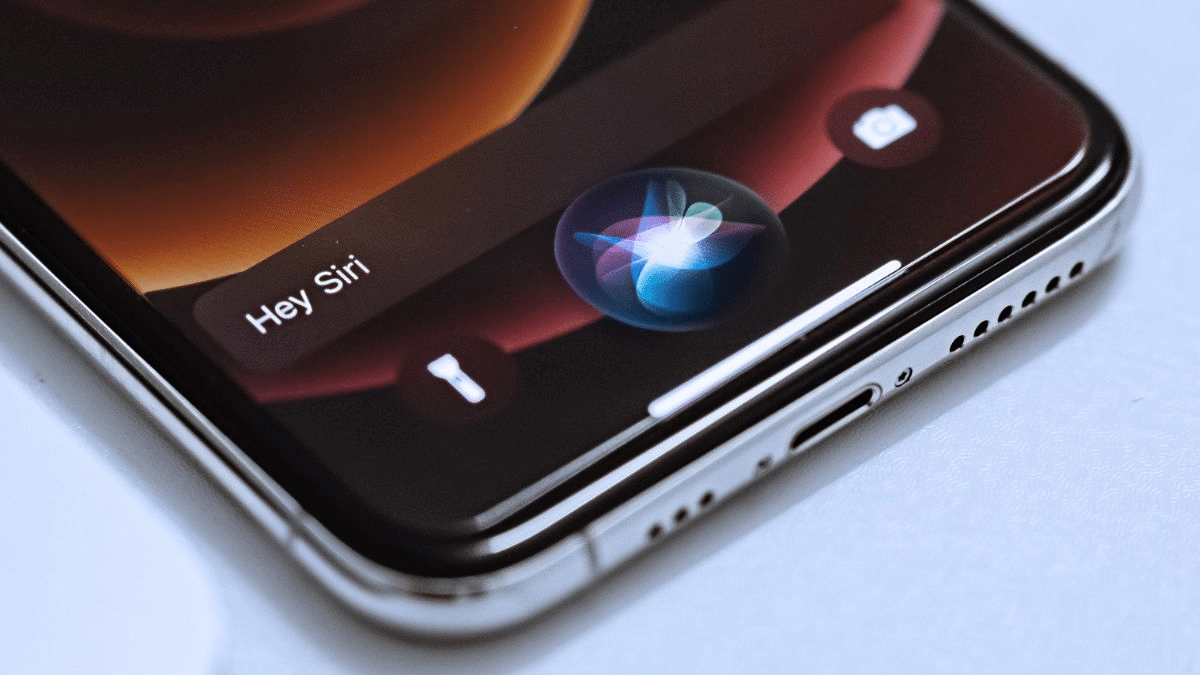
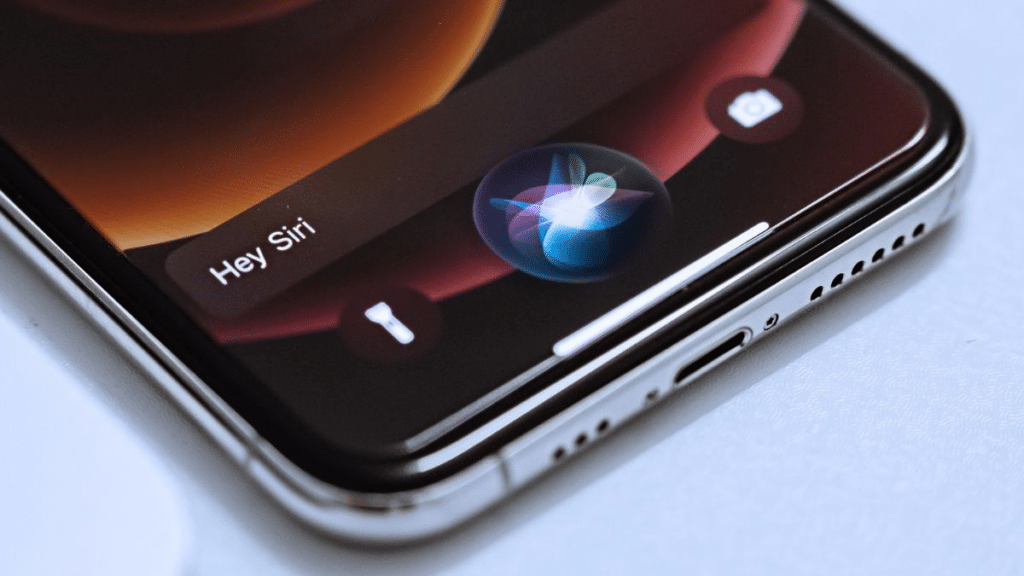
The most popular way to activate Siri is through voice activation. Toggle on “Listen for ‘Hey Siri'” to enable this hands-free feature. When you first activate this option, your iPhone will guide you through a setup process.
You’ll be asked to say several phrases so Siri can learn to recognize your voice specifically. This personalization helps prevent accidental activations from other people’s voices and improves accuracy when you speak. Follow the on-screen prompts and speak clearly in your natural voice:
- “Hey Siri”
- “Hey Siri, send a message”
- “Hey Siri, how’s the weather today?”
- “Hey Siri, set a timer for three minutes”
- “Hey Siri, play some music”
Once you’ve completed the voice training, your iPhone will recognize your unique voice pattern, making Siri more responsive and accurate when you use it.
Activating “Press Side Button for Siri”
Another essential toggle is “Press Side Button for Siri” (or “Press Home for Siri” on older models with a physical home button). This allows you to summon Siri manually by pressing and holding the side button or home button.
This method works even when “Hey Siri” voice activation isn’t practical—in noisy environments, when you want to be discreet, or if you simply prefer the tactile feedback of pressing a button. It’s reliable and works every time, regardless of background noise or other factors that might interfere with voice detection.
Configuring “Allow Siri When Locked”
The “Allow Siri When Locked” setting determines whether you can access Siri without first unlocking your device. Enabling this adds tremendous convenience—you can ask Siri questions or give commands even when your phone is sitting on a table with the screen locked.
However, this setting has privacy implications. Anyone near your phone could potentially access certain information or trigger actions through Siri without unlocking your device. Consider your personal security needs when deciding whether to enable this feature.
Customizing Your Siri Experience 🎨
Beyond basic activation, Siri offers numerous customization options that let you tailor the experience to your preferences and needs.
Choosing Siri’s Voice and Language
In the Siri & Search settings, you’ll find options for “Language” and “Siri Voice.” The language setting determines which language Siri understands and speaks, with support for dozens of languages and regional dialects.
The voice setting lets you choose Siri’s accent and gender. Apple offers multiple voice options for many languages, including American, Australian, British, Indian, Irish, and South African accents for English. You can also choose between different voice variations to find the one that sounds most natural to you.
Adjusting Voice Feedback Settings
The “Voice Feedback” option controls when Siri speaks responses aloud. You have three choices:
- Always On: Siri always provides spoken responses, whether you’re using headphones, speakerphone, or just holding your phone
- Control with Ring Switch: Siri only speaks when your phone isn’t in silent mode
- Hands-Free Only: Spoken responses only occur when using “Hey Siri” or connected to Bluetooth/headphones
Choose the setting that best matches your usage patterns and environment. Many people prefer “Control with Ring Switch” as it provides flexibility based on their phone’s silent mode status.
Managing Siri Suggestions
Siri doesn’t just respond to commands—it also learns your habits and offers proactive suggestions. The Siri & Search settings include options for enabling or disabling suggestions in various contexts: Search, Look Up, and Lock Screen.
These intelligent suggestions might include app shortcuts based on your routine, people you frequently contact at certain times, or relevant information from apps. You can fine-tune which apps provide suggestions by scrolling down in the Siri & Search settings and tapping individual apps to configure their Siri integration.
Practical Ways to Use Siri Daily 💡
Now that Siri is activated and customized, let’s explore some practical applications that showcase why this feature is worth having enabled.
Communication Made Effortless
Siri excels at handling communication tasks. Say “Hey Siri, text Mom I’m running 10 minutes late” and Siri will compose and send the message with your confirmation. You can also make calls, start FaceTime sessions, and even read your unread messages aloud while driving.
The hands-free nature of these commands makes them particularly valuable when multitasking. Whether you’re cooking, exercising, or commuting, you can stay connected without interrupting your activity.
Productivity and Organization
Siri transforms into your personal assistant for staying organized. Create reminders with location or time triggers: “Remind me to buy milk when I leave work.” Set multiple timers simultaneously: “Set a timer for 20 minutes called ‘laundry’ and another for 45 minutes called ‘dinner.'”
Calendar management becomes seamless too. Create appointments, check your schedule, and even get intelligent suggestions about travel time to your next meeting based on current traffic conditions.
Information and Entertainment
Curiosity strikes at random moments, and Siri satisfies it instantly. Ask about historical facts, mathematical calculations, sports scores, movie showtimes, or restaurant recommendations. The responses are pulled from various sources including web search, Wikipedia, Yelp, and Apple’s own databases.
For entertainment, Siri controls your music library and streaming services. “Play my workout playlist on Spotify” or “Play the latest episode of my favorite podcast” gives you instant access to audio entertainment without navigating through apps.
Troubleshooting Common Activation Issues 🔧
Sometimes Siri doesn’t activate as expected. Here are solutions to the most common problems users encounter.
Siri Doesn’t Respond to “Hey Siri”
If voice activation isn’t working, first verify that “Listen for ‘Hey Siri'” is toggled on in settings. If it is, try setting up “Hey Siri” again—sometimes retraining the voice recognition improves responsiveness.
Check that your device isn’t in Low Power Mode, as this feature disables “Hey Siri” to conserve battery. Also, ensure your microphone isn’t blocked or damaged. Test it using the Voice Memos app to verify audio input is working properly.
Side Button Press Doesn’t Activate Siri
When the button press method fails, confirm that “Press Side Button for Siri” (or “Press Home for Siri”) is enabled in settings. Make sure you’re holding the button long enough—a quick press won’t trigger Siri; you need to press and hold for about one second.
Siri Isn’t Available in Your Language
While Siri supports numerous languages, availability varies by region and device. Check Apple’s official Siri availability page to confirm your language and region combination is supported. Some features may be limited in certain languages as Apple continues expanding capabilities.
Privacy and Security Considerations 🔒
Understanding how Siri handles your data is important for making informed decisions about using this feature.
When you use Siri, your voice requests are sent to Apple’s servers for processing. Apple anonymizes this data by associating it with a random identifier rather than your Apple ID. You can reset this identifier at any time in Settings under Siri & Search by toggling Siri off and back on.
The “Allow Siri When Locked” setting deserves special attention. When enabled, someone with physical access to your locked phone could potentially access certain information or perform actions through Siri. Evaluate whether the convenience outweighs the potential security implications for your specific situation.
You can review and delete your Siri interaction history by going to Settings > Siri & Search > Siri & Dictation History. This gives you control over what data Apple retains from your voice interactions.
Advanced Siri Features Worth Exploring 🌟
Once you’re comfortable with basic Siri functionality, several advanced features can enhance your experience further.
Siri Shortcuts and Automation
The Shortcuts app, available for free on the App Store, lets you create custom Siri commands that trigger complex sequences of actions across multiple apps. You might create a “Good morning” shortcut that reads your calendar, provides weather information, starts your favorite playlist, and adjusts your smart home devices—all with a single voice command.
Type to Siri
In situations where speaking isn’t appropriate, you can type your requests to Siri instead. Enable this by going to Settings > Accessibility > Siri and toggling on “Type to Siri.” When you activate Siri, a keyboard appears instead of the voice interface, giving you silent access to Siri’s capabilities.
Announce Messages and Calls
When using AirPods or compatible headphones, Siri can announce incoming messages and calls, reading them aloud so you don’t need to check your screen. Configure this feature in Settings > Siri & Search > Announce Messages and Announce Calls to stay informed hands-free.
Making Siri Work Across Your Apple Ecosystem 🍎
The true power of Siri emerges when you use it across multiple Apple devices, creating a seamless ecosystem of voice control.
On your Apple Watch, Siri provides wrist-based access to many of the same features, perfect for quick queries when your phone isn’t immediately accessible. Your iPad offers a larger screen for Siri responses, excellent for cooking with recipes or following tutorials hands-free.
HomePod and HomePod mini turn Siri into a smart home hub, controlling compatible devices, playing music throughout your home, and serving as an intercom system between rooms. Mac computers with recent macOS versions include Siri in the menu bar, bringing voice control to your desktop computing experience.
The continuity between devices means you can start a task on one device and continue on another. Ask Siri on your Apple Watch for directions, then seamlessly continue navigation on your iPhone when you’re ready to drive.
Maximizing Battery Life with Siri Active ⚡
One common concern about activating Siri, especially “Hey Siri,” is battery impact. While having Siri constantly listening for its wake phrase does use some battery, modern iPhones handle this efficiently through dedicated low-power chips.
If battery life is a priority, consider disabling “Hey Siri” and relying solely on button activation. This eliminates the continuous listening process while still giving you full access to Siri’s capabilities when needed.
Low Power Mode automatically disables “Hey Siri” to conserve energy, which is a smart compromise—when your battery is low, you probably want to minimize non-essential functions anyway.
Keeping Siri Updated and Improving Over Time 📈
Siri continuously improves as Apple releases software updates. Each iOS version typically includes enhancements to Siri’s natural language understanding, response accuracy, and feature set.
Keeping your device updated ensures you benefit from the latest improvements. Go to Settings > General > Software Update to check for available iOS updates. These updates often include bug fixes for Siri issues along with new capabilities.
Siri also learns from your usage patterns over time (while maintaining privacy through anonymization). The more you use it, the better it becomes at understanding your speech patterns, accent, and preferences.
Your Voice-Activated Future Starts Now 🎯
Activating Siri transforms your iPhone from a device you interact with through touch into one that responds to your natural voice. This shift represents more than convenience—it’s about accessing technology in a more human, intuitive way that fits into the flow of your daily life.
Whether you’re someone who’s always multitasking, someone with accessibility needs that make voice control essential, or simply someone curious about embracing modern technology, Siri offers genuine value once properly activated and configured.
The initial setup takes just minutes, but the ongoing benefits extend across countless moments throughout your day. From the first morning alarm to the last evening reminder, Siri becomes a consistent presence that helps you navigate digital tasks more efficiently.
Take the time to explore different commands, experiment with various features, and discover which Siri capabilities best complement your lifestyle. The voice assistant that seemed like futuristic novelty just years ago has matured into a genuinely useful tool that millions of people now consider indispensable.
Your journey with Siri begins with activation, but it doesn’t end there. As you become more comfortable issuing voice commands and Siri becomes more attuned to your patterns, you’ll likely find yourself wondering how you ever managed without this digital assistant at your beck and call. 🚀
