
Anúncios
Unlocking Siri: Your Personal Voice Assistant

Start Using Siri
In today’s fast-paced digital world, voice assistants have become an essential part of our daily routines. Siri, Apple’s intelligent personal assistant, stands at the forefront of this technological revolution, offering users seamless interaction with their devices through natural voice commands. Whether you’re a new iPhone owner or simply haven’t explored all the capabilities of your device, learning how to activate and use Siri can significantly enhance your mobile experience.
Activating Siri on your mobile phone opens up a world of possibilities, from setting reminders and sending messages to controlling smart home devices and getting instant answers to your questions. The process is straightforward, but understanding all the available activation methods and customization options will help you make the most of this powerful feature. Let’s explore everything you need to know about getting Siri up and running on your device. 📱
Anúncios
Understanding Siri Before You Begin
Before diving into the activation process, it’s helpful to understand what Siri actually is and what it can do for you. Siri is an artificial intelligence-powered voice assistant developed by Apple, designed to understand natural language commands and respond intelligently to your requests. Since its introduction in 2011, Siri has evolved significantly, becoming more sophisticated and capable with each iOS update.
The assistant can perform hundreds of tasks, from basic functions like making phone calls and setting alarms to more complex operations such as translating languages, identifying songs, and providing contextual suggestions based on your habits. Siri works across the entire Apple ecosystem, including iPhone, iPad, Apple Watch, Mac, HomePod, and even AirPods, creating a unified experience across all your devices.
Anúncios
Checking Your Device Compatibility
Siri is available on most modern Apple devices, but it’s worth confirming that your specific model supports the feature. Generally, Siri works on iPhone 4s and later models, which means if you have any iPhone from the past decade, you’re good to go. The feature requires an active internet connection to function, as it processes requests through Apple’s servers to deliver accurate responses.
For optimal performance, ensure your device is running the latest version of iOS. You can check this by going to Settings > General > Software Update. Newer iOS versions often include enhanced Siri capabilities, improved voice recognition, and better integration with third-party apps. Keeping your system updated ensures you have access to all the latest features and security improvements. 🔄
Enabling Siri Through Settings: The Primary Method
The most straightforward way to activate Siri on your iPhone is through the Settings app. This method gives you complete control over how Siri responds and what features are enabled. Here’s the detailed process:
Open the Settings app on your iPhone, which appears as a gray icon with gears. Scroll down until you find “Siri & Search” – this is your command center for all things related to Apple’s voice assistant. Tap on this option to access the configuration menu.
Inside the Siri & Search menu, you’ll see several toggle switches that control different aspects of the assistant’s functionality. The main toggles you need to focus on are:
- Listen for “Hey Siri”: This enables hands-free activation, allowing you to summon Siri by simply saying the wake phrase without touching your device
- Press Side Button for Siri: On newer iPhones (iPhone X and later), this lets you activate Siri by pressing and holding the side button
- Press Home for Siri: On older iPhones with a physical Home button, this option allows activation through button press
- Allow Siri When Locked: This determines whether you can use Siri when your phone is locked, balancing convenience with security
Toggle on the options that suit your preferences. For most users, enabling all three primary activation methods provides maximum flexibility. When you first enable “Hey Siri,” your iPhone will guide you through a brief setup process to recognize your voice. ✨
Setting Up “Hey Siri” Voice Recognition
The “Hey Siri” feature is one of the most convenient ways to interact with your voice assistant, especially when your hands are busy. The setup process involves training Siri to recognize your specific voice pattern, which improves accuracy and adds a layer of security.
When you enable “Hey Siri” for the first time, your iPhone will display a setup screen with the title “Set Up ‘Hey Siri’.” Tap Continue to begin the training process. You’ll be prompted to say several phrases out loud, such as:
- “Hey Siri”
- “Hey Siri, send a message”
- “Hey Siri, what’s the weather like today?”
- “Hey Siri, set a timer for three minutes”
- “Hey Siri, play some music”
Speak naturally and clearly during this process, but don’t worry about being too formal or robotic. Siri is designed to understand natural speech patterns, including your accent and speaking style. The training takes less than a minute, and once completed, your iPhone will be ready to respond whenever you say the magic words. The voice recognition technology also helps prevent others from accidentally activating Siri on your device.
Activating Siri with Physical Buttons 🔘
Beyond voice activation, physical button presses provide a reliable alternative, especially in noisy environments where “Hey Siri” might not work well or when you prefer discretion. The method varies slightly depending on your iPhone model.
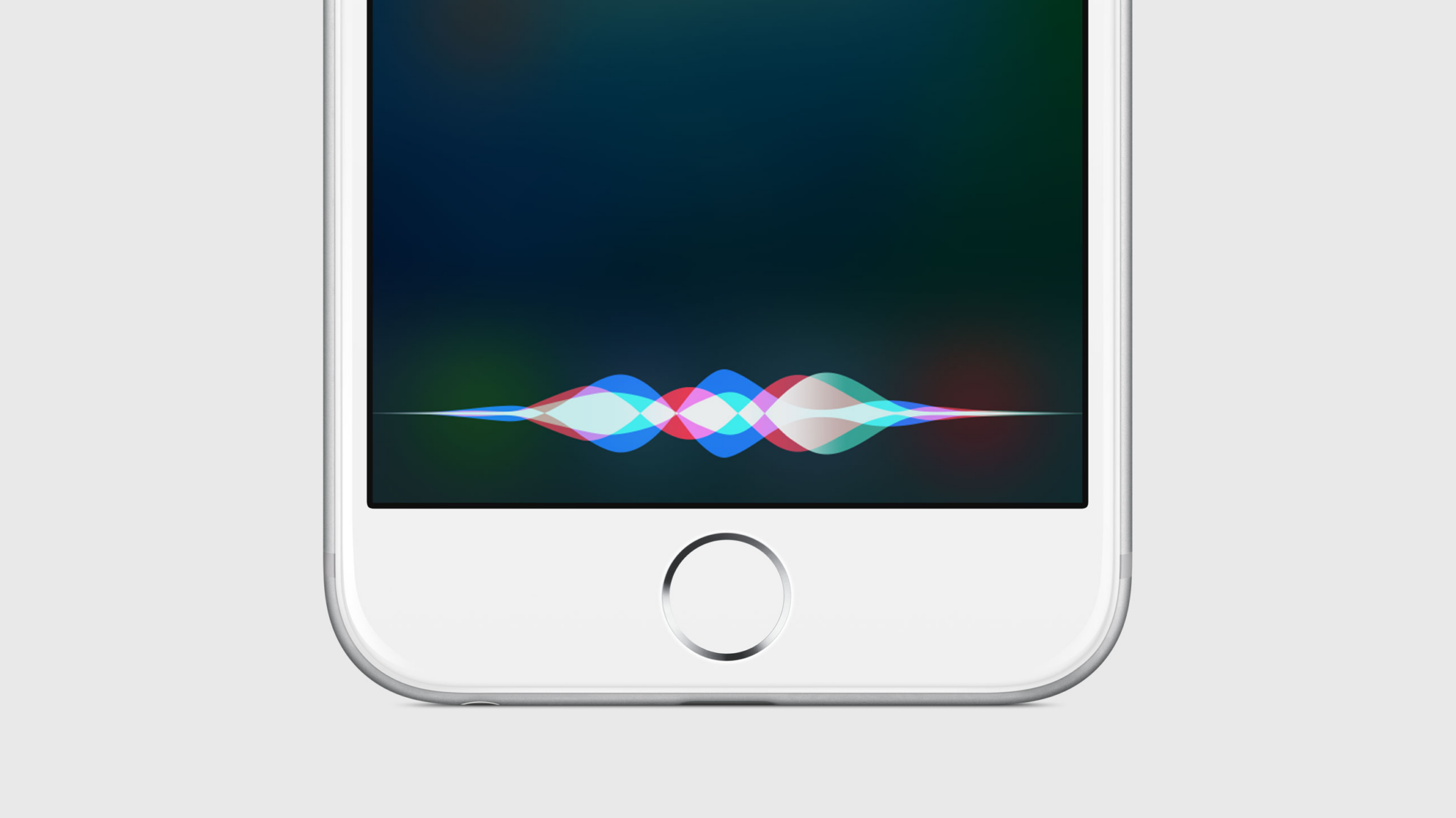
For iPhones with Face ID (iPhone X and newer models), press and hold the side button located on the right edge of your device. You’ll feel a slight vibration and see the Siri interface appear on screen, indicated by colorful waves at the bottom. Continue holding the button while you speak your request, then release it when you’re done speaking. Alternatively, you can press the button once and speak immediately – Siri will automatically detect when you’ve finished talking.
For iPhones with a Home button (iPhone 8 and earlier), the process is equally simple. Press and hold the circular Home button until you hear the familiar Siri chime and see the interface appear. The same speaking guidelines apply – you can either hold the button while talking or press once and let Siri detect the end of your command automatically.
Using Siri with AirPods and Headphones 🎧
If you frequently use wireless earbuds or headphones, you’ll be pleased to know that Siri is fully accessible through these accessories as well. With AirPods (2nd generation and later) and AirPods Pro, you can simply say “Hey Siri” just as you would with your iPhone, without needing to touch any device.
For first-generation AirPods or other compatible Bluetooth headphones, you can activate Siri by double-tapping one of the AirPods. You can customize which AirPod (left or right) responds to the double-tap gesture by going to Settings > Bluetooth, tapping the “i” icon next to your AirPods, and selecting your preferred configuration under “Double-Tap on AirPod.”
Wired headphones with inline controls also support Siri activation. Simply press and hold the center button on the headphone remote until you hear the Siri tone. This hands-free approach is particularly useful when you’re exercising, driving, or when your iPhone isn’t immediately accessible.
Configuring Siri Language and Voice Options
Personalization is key to getting the most out of Siri, and one of the most impactful customizations involves selecting the language and voice that works best for you. Apple offers Siri in dozens of languages and dialects, each with multiple voice options varying in gender and accent.
To change these settings, return to Settings > Siri & Search and look for the “Language” option. Tap it to see the full list of available languages. Siri supports major languages like English, Spanish, French, German, Chinese, Japanese, and many others, often with regional variants (such as English US, UK, Australian, and Indian).
Just below the Language setting, you’ll find “Siri Voice,” which allows you to choose the accent and gender of Siri’s responses. For English alone, you can select American, Australian, British, Indian, Irish, or South African accents, each available in multiple voice varieties. Listen to the samples provided to find the voice that sounds most natural and pleasant to you. These personalization options make interactions feel more comfortable and natural. 🌍
Adjusting Siri Privacy and Security Settings
Privacy is a legitimate concern when using voice assistants, and Apple has implemented several features to give you control over your data. Understanding these settings helps you balance convenience with privacy protection.
In the Siri & Search settings, pay attention to the “Allow Siri When Locked” toggle. Disabling this prevents anyone from using Siri to access information or perform actions when your iPhone is locked. While this reduces convenience, it significantly enhances security, especially if you handle sensitive information or share your device with others.
Siri also offers options regarding how your voice recordings are handled. Apple anonymizes Siri interactions and provides the option to opt out of sharing audio recordings with Apple for quality improvement purposes. To manage this, go to Settings > Privacy & Security > Analytics & Improvements, and look for the “Improve Siri & Dictation” toggle. Turning this off prevents Apple from storing audio recordings of your Siri interactions.
Additionally, you can view and delete your Siri history by going to Settings > Siri & Search > Siri & Dictation History. Here, you’ll find an option to “Delete Siri & Dictation History,” which removes all the commands and requests associated with your device from Apple’s servers. This gives you complete control over your voice data. 🔒
Troubleshooting Common Activation Issues
Sometimes Siri might not activate as expected, but most issues have simple solutions. If “Hey Siri” isn’t working, first ensure that the feature is enabled in Settings and that you’ve completed the voice training process. Also, check that your iPhone’s microphone isn’t blocked or damaged – try making a voice memo to test microphone functionality.
Low power mode can disable “Hey Siri” to conserve battery. If you have Low Power Mode active (indicated by a yellow battery icon), Siri will only work through button presses. You can check this by going to Settings > Battery.
Internet connectivity is crucial for Siri’s operation. If you’re experiencing slow or unresponsive behavior, verify that you have a stable Wi-Fi or cellular data connection. Siri requires internet access to process most requests, as the natural language processing happens on Apple’s servers rather than entirely on your device.
If Siri isn’t responding to button presses, restart your iPhone. This simple step resolves many temporary software glitches. For persistent issues, consider resetting Siri by turning off all Siri options in Settings, restarting your device, then re-enabling and setting up Siri from scratch.
Maximizing Siri’s Potential in Daily Life
Once Siri is activated and configured, the real magic happens when you integrate it into your daily routines. The assistant excels at quick tasks that would otherwise require multiple taps and swipes. For morning routines, try asking Siri about weather forecasts, reading news briefings, or setting multiple alarms for different purposes.
During commutes, Siri becomes invaluable for hands-free communication. You can dictate and send text messages, make phone calls, get navigation directions, or control music playback – all without taking your eyes off the road. The integration with Apple Maps and third-party navigation apps makes Siri an essential co-pilot. 🚗
At work or school, Siri can boost productivity by setting reminders with specific locations or times, creating notes through dictation, calculating conversions, and even controlling presentation modes. The assistant’s ability to understand context means you can say things like “remind me about this when I get home” while viewing an email, and Siri will create an appropriate reminder.
For smart home enthusiasts, Siri serves as the control center for HomeKit-enabled devices. You can create scenes that control multiple devices simultaneously, such as “Hey Siri, good night” to turn off lights, lock doors, and adjust thermostats – all with a single command.
Exploring Advanced Siri Features and Shortcuts
Beyond basic commands, Siri offers sophisticated capabilities through the Shortcuts app, which allows you to create custom voice commands for complex multi-step actions. These shortcuts can automate repetitive tasks, combining multiple apps and actions into a single voice command.
For example, you could create a “heading to work” shortcut that simultaneously sends a text message to your partner, starts navigation to your office, opens your podcast app, and adjusts your phone to Do Not Disturb mode – all triggered by a single Siri command. The Shortcuts app provides a gallery of pre-made shortcuts, or you can build custom ones tailored to your specific needs.
Siri also learns from your behavior through machine learning, offering proactive suggestions on your lock screen or in search. These suggestions might include apps you typically use at certain times, people you frequently contact, or shortcuts relevant to your current activity. The more you use Siri, the more personalized and helpful these suggestions become.
Third-Party App Integration with Siri
Apple has opened Siri to third-party developers through SiriKit, enabling voice control for apps beyond Apple’s ecosystem. Many popular apps now support Siri commands, including messaging platforms like WhatsApp, ride-sharing services like Uber, payment apps like Venmo, and fitness tracking apps like Strava.
To manage which apps can interact with Siri, go to Settings > Siri & Search and scroll down to see a list of all your installed apps. Tapping on any app reveals options for “Learn from this App,” “Show Siri Suggestions,” and “Suggest Shortcuts.” Customizing these settings on a per-app basis ensures Siri only has access to information you’re comfortable sharing while still providing useful suggestions.
When using Siri with third-party apps, the commands are intuitive. For instance, “Hey Siri, send a WhatsApp message to Mom” or “Hey Siri, get me an Uber home” work seamlessly once the respective apps are installed and permissions granted. This extensibility transforms Siri from just an Apple ecosystem tool into a universal voice interface for your entire digital life. 🌟
Enhancing Accessibility Through Siri
For users with accessibility needs, Siri represents far more than convenience – it’s often an essential tool for device interaction. Apple has designed Siri with numerous accessibility features that make iPhones usable for people with various physical, visual, or cognitive challenges.
Siri’s Type to Siri feature allows users who cannot or prefer not to speak aloud to interact with the assistant through text input. Enable this in Settings > Accessibility > Siri by toggling on “Type to Siri.” Once enabled, you can activate Siri as usual, but instead of speaking, a keyboard appears for typing your requests.
The assistant also works beautifully with VoiceOver, Apple’s screen reader technology, announcing responses audibly for users with visual impairments. Combined with voice commands, this creates a fully accessible interface for performing tasks that might otherwise require precise touch interactions.
For users with motor difficulties, voice control through Siri eliminates the need for complex gestures or precise taps. Commands can handle everything from opening apps to composing messages, making the iPhone accessible to people who might struggle with traditional touch interfaces.
Making Siri Your Reliable Digital Companion
Activating Siri on your mobile phone is just the beginning of a more efficient, hands-free relationship with your device. By taking the time to properly configure activation methods, personalize settings, and understand privacy controls, you create an assistant that truly works for your specific needs and preferences.
The key to getting maximum value from Siri is consistent use and exploration. Don’t hesitate to experiment with different commands and phrasing – Siri’s natural language processing means there’s rarely just one “correct” way to ask for something. Over time, you’ll discover which tasks Siri handles best for your lifestyle and develop habits that integrate voice assistance seamlessly into your daily routines.
Remember that Siri continuously improves with each iOS update, gaining new capabilities and better understanding. What the assistant couldn’t do six months ago might be perfectly possible today, so periodically revisiting Siri’s capabilities ensures you’re not missing out on valuable new features. The investment of a few minutes to activate and customize Siri pays dividends in time saved and convenience gained every single day. 💡
